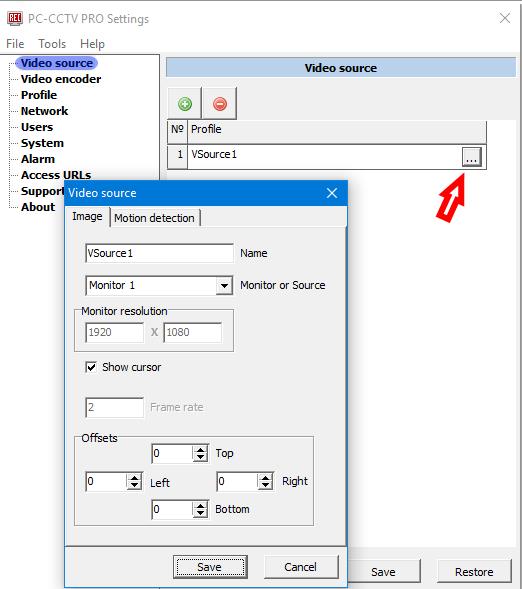
In the section you can set video source parameters.
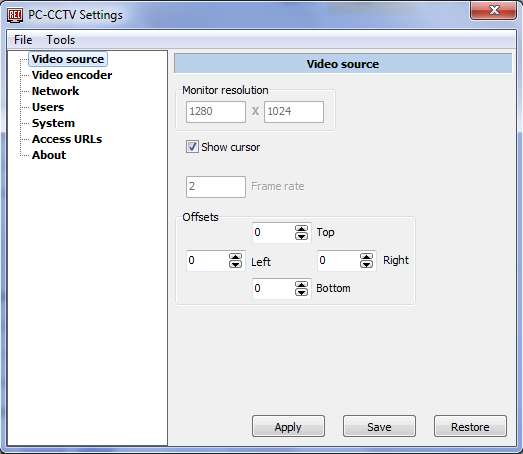
Monitor resolution: The displayed values in the fields are the current parameters of your monitor resolution. The picture of the screen which you are to record with a DVR cannot have better (higher) resolution than the parameters.
Show cursor: Check if you need to broadcast/record the cursor also. But need to remember that having checked the square you also increase the "CPU usage".
Frame rate: Maximum frequency of the frames capture by the program, it is changed automatically.
Offsets: By changing values in the fields you can select some specific area of the screen of your monitor for broadcast/record. For example if you input " Top: 100" , then top area of 100 pixels won't be broadcast/record. If you entered wrong values - the program process 0 offsets values, no matter what is written in the fields. For example, the monitor resolution is 1280x1024, but you entered top 800 and bottom 900. (800+900>1024).
Note: First you need to add a video source using the button  .
To edit settings of the video source press button
.
To edit settings of the video source press button  .
.
Name: Enter name of the video source here.
Monitor or source: If you have more than 1 monitor connected to your computer's video card or use an external video source - select the monitor or the external source which you want to broadcast here.
Monitor resolution: The displayed values in the fields are the current parameters of your monitor resolution. The picture of the screen which you are to record with a DVR cannot have better (higher) resolution than the parameters.
Show cursor: Check if you need to broadcast/record the cursor also. But need to remember that having checked the square you also increase the "CPU usage".
Frame rate: Maximum frequency of the frames capture by the program, it is changed automatically.
Offsets: By changing values in the fields you can select some specific area of the screen of your monitor for broadcast/record. For example if you input " Top: 100" , then top area of 100 pixels won't be broadcast/record. If you entered wrong values - the program process 0 offsets values, no matter what is written in the fields. For example, the monitor resolution is 1280x1024, but you entered top 800 and bottom 900. (800+900>1024).
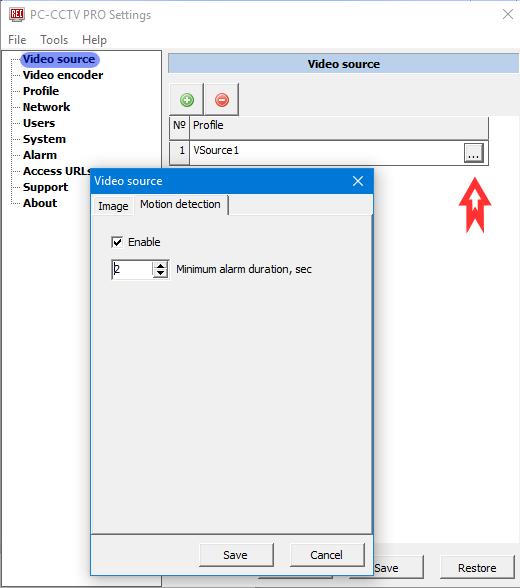
The ONVIF event occurs when an image from this video source is changed.
Enabled: To enable motiom alarm.
Minimum alarm duration, sec: After this time, the alarm will go into the inactive state.
ONVIF event decription.
Topic expression: tns1:VideoAnalytics/MotionDetection
source - The video source reference token
state=True - The alarm is active
state=False - The alarm is inactive